This post contains affiliate links. Full disclosure at the bottom.
Short version: On November 6, 2026, I used Gamma's free plan to build a 10-slide 9th-grade budgeting lesson. These seven tricks are the ones that made the deck look less generic, and that I can show from that test or from Gamma's own help pages. The Agent's questions, an edited outline, a free theme change, and one 3-credit slide redo did most of the work. The outline and text did not appear to use credits; the ten AI images used 20, and the redo used 3, for 23 of the 400 free credits. Those credits do not refresh on the free plan. Start there. If you make slides regularly, Plus is the plan I would pick, because it refills credits each month and removes the "Made with Gamma" badge from exports.
Gamma will give you a finished-looking deck quickly. That speed is useful, and it is also how slides end up looking like everyone else's. I already walked through the clicks in How to Turn a Lesson Plan into Slides with Gamma, and I covered credits and pricing in our Gamma AI review. This post is narrower: what actually helped the 9th-grade budgeting deck look less like a first AI draft.
I asked for a 10-slide lesson on building a first monthly budget, with a 50/30/20 example I could check and a short class activity. I can tell when those numbers are wrong, which is why I used this topic. From prompt to finished deck took about three minutes, including the questions and the outline.
1. Answer the Agent's questions
Gamma's Agent asked clarifying questions before it built anything: tone, deck style, and the activity. The tone choices included Conversational & relatable, Formal & structured, Interactive & gamified, and Decide for me. I chose Conversational. I also reviewed the summary before continuing.
That step took about ten seconds, and it is easy to skip. I would not. "Decide for me" is how you get a generic voice. If you know the grade level, the tone, and the activity you want, say so. According to Gamma's help center, checked November 22, 2026, you are not charged credits when the Agent only asks a clarifying question.
2. Edit the outline before you spend image credits
After the questions, the Agent wrote an editable 10-slide outline, with merge options and a settings panel on the right. I could change slide titles and bullets there, before any images were generated.
That matters because of how credits worked in this test. My balance went from 400 to 380 after the full deck, which matched the ten AI images at 2 credits each. The outline and text did not appear to add anything. Regenerating one slide later cost 3 credits. If a slide is in the wrong place, or the wording is already too stiff, fix it on the outline. You have not spent the image credits yet.
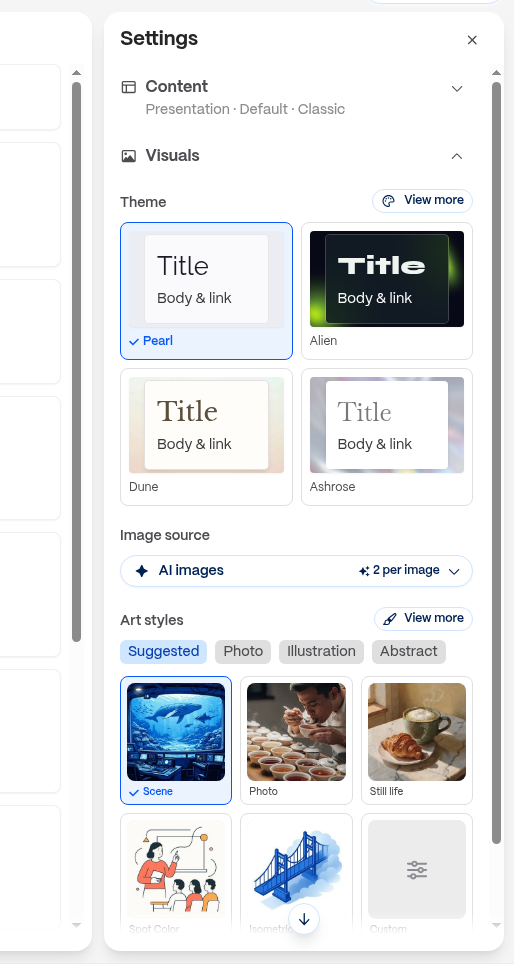
The same settings panel is where you choose the starting theme and the image options. The default theme was Pearl. Image source was set to AI images at 2 credits per image, with art styles such as Scene, Photo, and Still life visible. I used the defaults for images in this test, so I will not claim a different art style would have looked better. I will say this: those choices are cheaper to make now than after the deck exists.
3. Change the theme off the default
Pearl is a clean default, and a default is what makes a deck look familiar. After the slides generated, I opened the theme panel and switched the whole deck to Coral Glow. Every slide updated in a second or two, and it cost 0 credits.
That is the easiest visual change I made, and Gamma's help center confirms that picking a theme is a manual action and does not use credits. You can still do it after the credits run out. I would make this change even if I liked the first layout, just to get away from the theme most first-time decks start with.

4. Redo only the weak slide, then compare
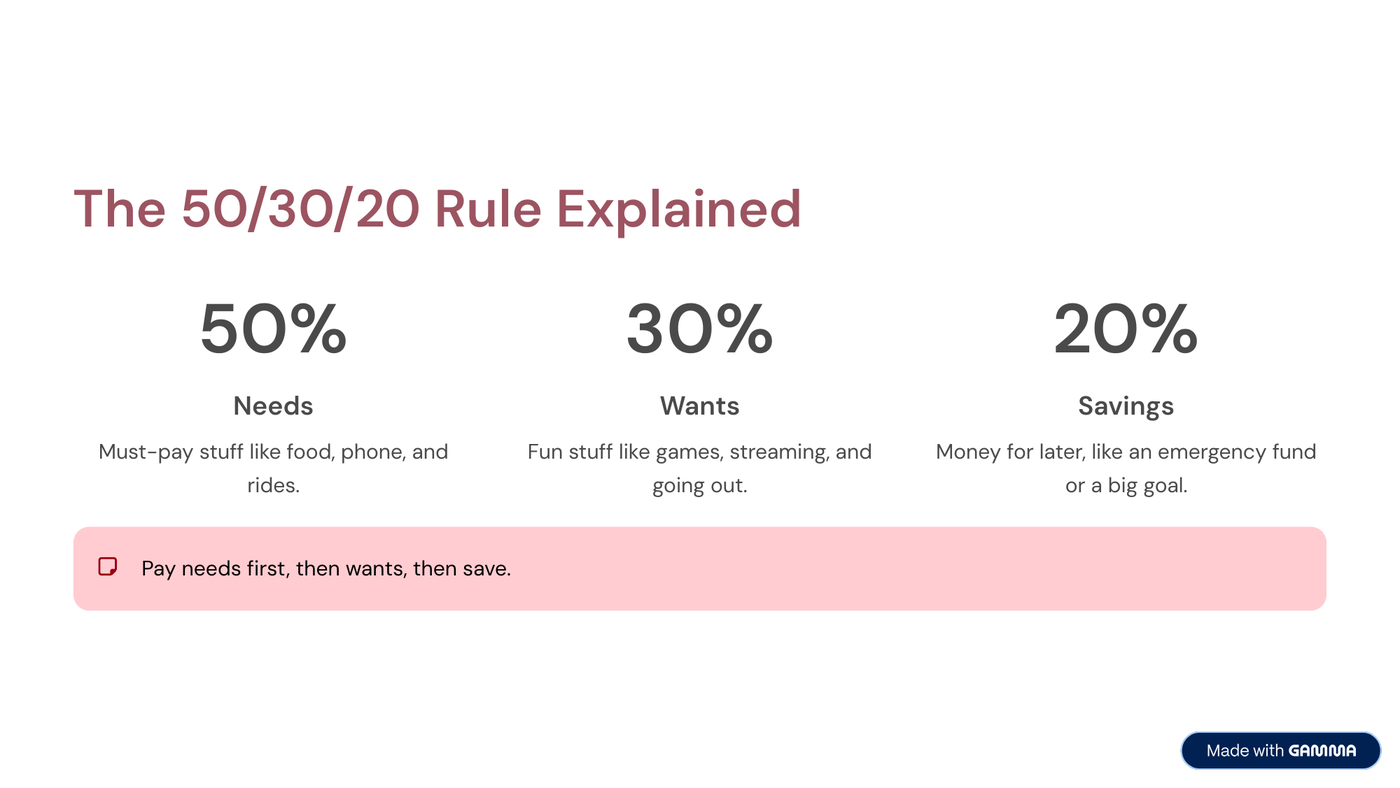
I did not regenerate the whole deck. I asked the Agent to redo slide 5, "The 50/30/20 Rule Explained," with a fresh layout and simpler wording for 9th graders. It took about 15 seconds and cost 3 credits, and my balance went from 380 to 377.
Gamma showed the original and the new version with an Original/Modified toggle, so I could keep the one I preferred. The version I kept is a simple three-column 50/30/20 layout, with short labels for Needs, Wants, and Savings. One weak slide is usually the problem, not the entire outline. Redo that slide. Leave the rest.
5. Check every number yourself
This is the step that has nothing to do with Gamma's menus, and it is the one I will not skip. The point of using a budgeting lesson was that I could verify the math.
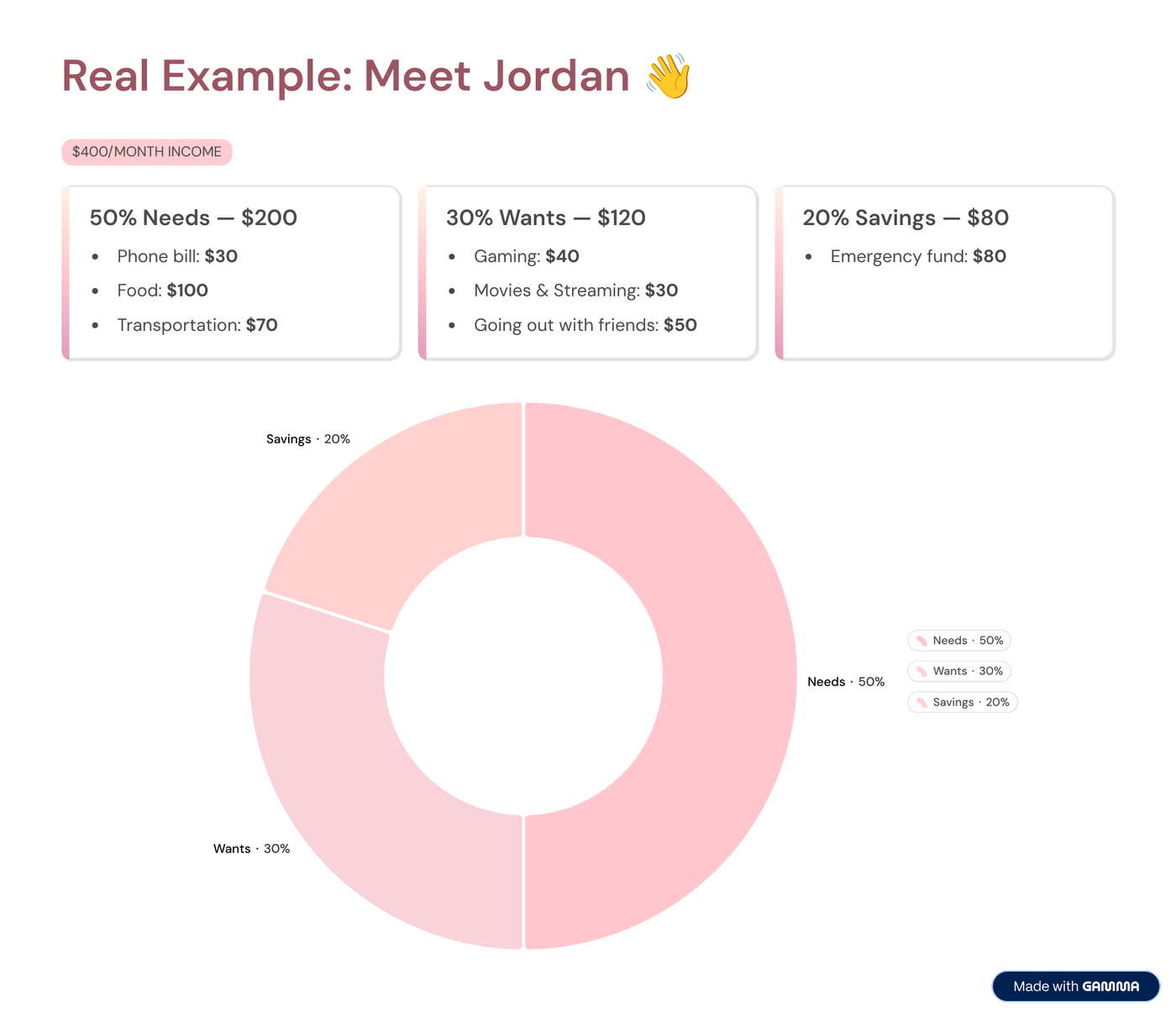
The example slide used a student named Jordan with $400 a month. Needs were $200, wants were $120, and savings were $80. Those percentages are correct, and the dollar amounts inside the needs and wants lists add up. The class-activity slide used a $300-a-month scenario, with $150 in needs, and asked students how to split the remaining $150 between wants and savings.
In this test, the numbers were right. That will not always be true, and I would not share a deck I had not checked. A polished layout with a wrong example looks more careless, not less like AI. If you cannot verify the content, do not use the slide yet.
6. Read the overflowing-content warning before you export
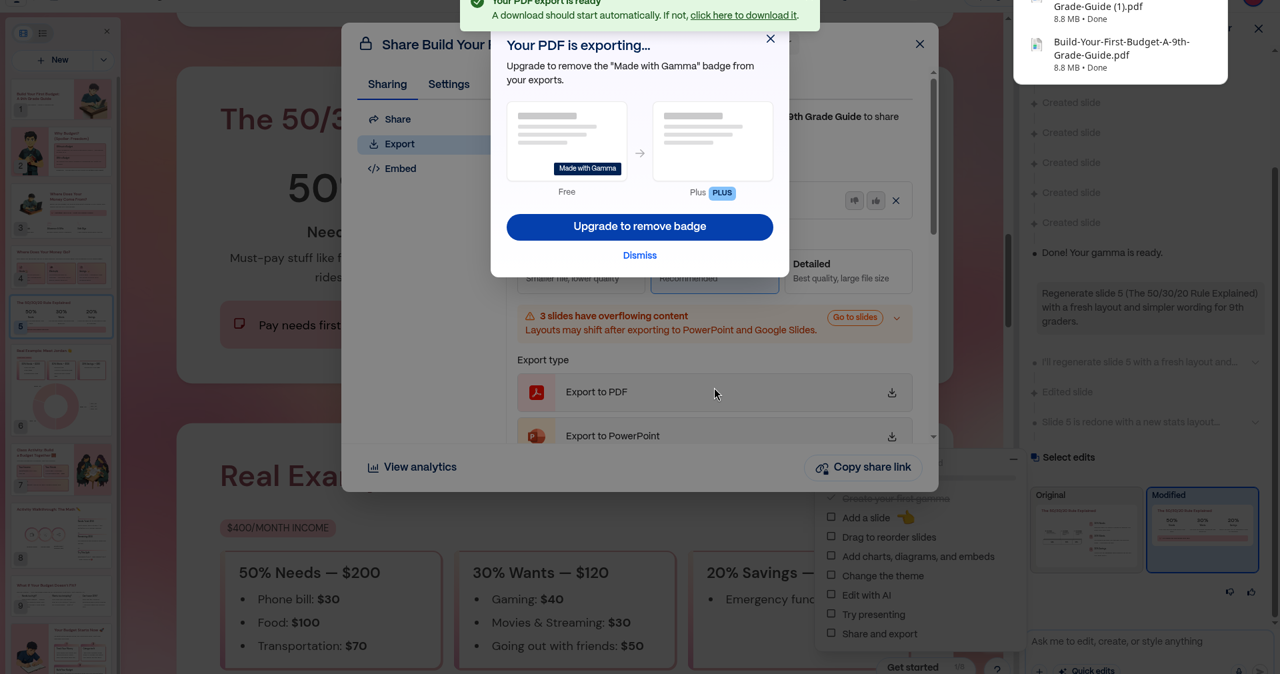
Before I exported, Gamma warned that 3 slides had overflowing content, and that layouts may shift after exporting to PowerPoint and Google Slides. I exported anyway, because I wanted to see the files, but I would not put those slides in front of a class without checking them.
The warning is easy to miss once the upgrade prompts start appearing. Look for it. Then open the affected slides and tighten the layout, even if that means deleting a line or moving a chart by hand. Manual edits do not use credits.
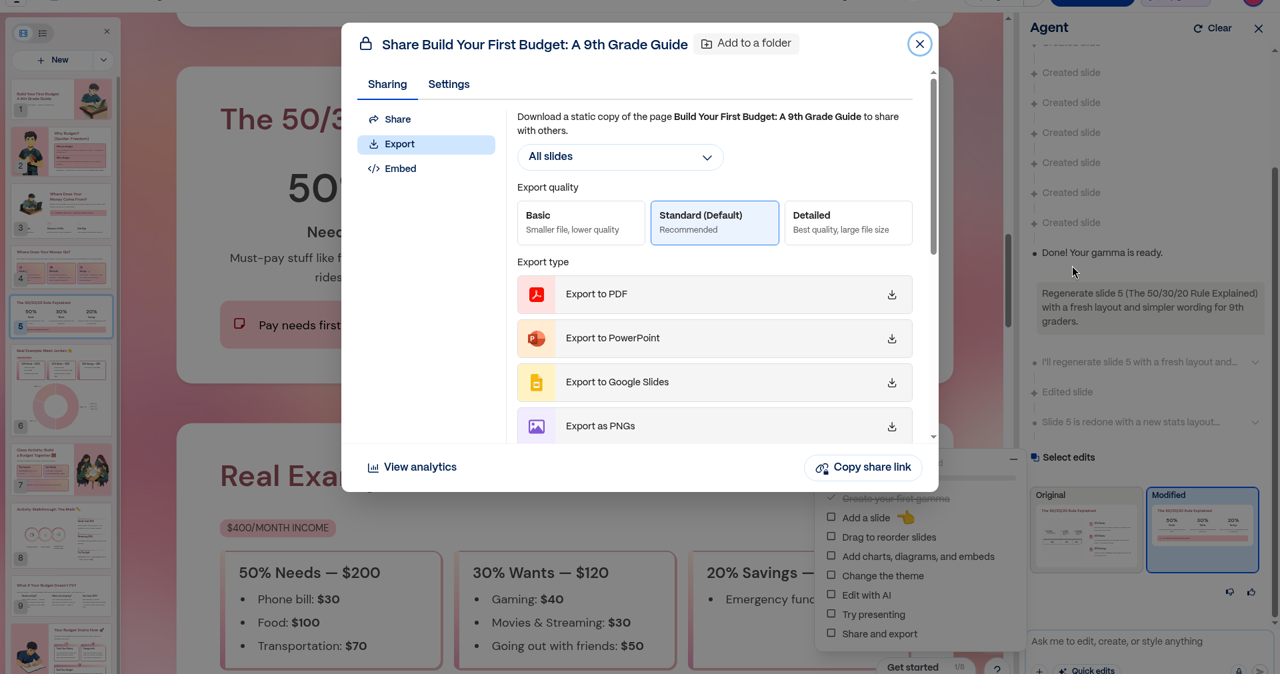
I exported a PDF in about 15 seconds, 10 pages, 8.8 MB at Standard quality, and a PowerPoint in about 20 to 25 seconds, 3.9 MB. The PowerPoint had editable text and embedded images when I inspected the file structure. I did not open it in PowerPoint, and I did not test Google Slides or PNG exports, so I will not describe how those looked.
7. Proof the export, including the badge
Every free export in this test carried a small "Made with Gamma" badge in the bottom-right corner. I confirmed it on the PDF, including the last slide. The switch to hide the badge is locked to Plus, and the export screen offers an upgrade to remove it. Exports themselves are not credit-gated, and Gamma never asked for a card.
Most people will not mind a small badge. If you do, you can crop it, or you can move to Plus when you are exporting work you do not want marked. During the PDF export, the file also downloaded twice, which is a minor bug, not a design feature.
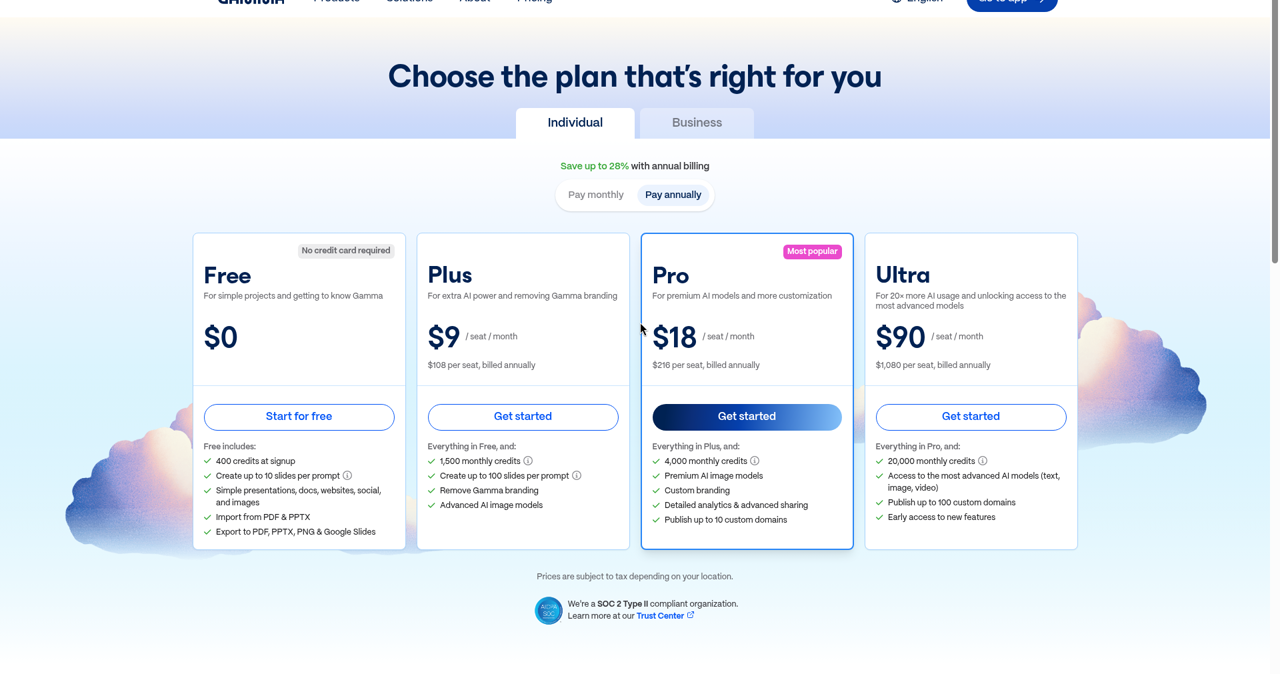
So what does Plus cost? On gamma.app/pricing, as we captured it on November 8, 2026, the annual view listed Plus at $9 a seat a month ($108 a year), Pro at $18 ($216 a year), and Ultra at $90 ($1,080 a year). The same page's monthly toggle, on that check, listed Plus at $12, Pro at $25, and Ultra at $100. Plus includes 1,500 credits a month, up to 100 slides per prompt instead of 10, and removal of Gamma branding. I could not reload the live pricing page on November 22, 2026, so I am dating the dollar amounts to that November 8 capture. Credit rules were rechecked the same day in Gamma's help center: a new free account gets 400 credits, they do not refresh, referrals add 200 each, and paid-plan credits refill monthly.
Does a teacher or a solopreneur need to pay on day one? No. Start on the free plan, because 400 credits is enough to see whether the results suit you. Our deck used 23 credits once I counted the slide redo, so you have room for roughly 15 to 17 decks like it. If you make slides every week, those one-time credits will run out, and that is when Plus is worth it: the monthly refill and the badge-free exports are what you would be paying for.
The tricks above will not turn Gamma into a substitute for knowing your material. They will keep a fast first draft from looking like one.
Try Gamma free (no card needed) →
All pricing as of November 8, 2026, from gamma.app/pricing. Credit rules were rechecked in Gamma's help center on November 22, 2026.
Disclosure: Some of the links on this page are affiliate links. This means if you click and make a purchase, we may earn a commission at no extra cost to you. We only recommend tools we have personally tested or thoroughly researched. Our opinions are our own.
