This post contains affiliate links. Full disclosure at the bottom.
Short version: Systeme.io won't send email from a Gmail address, even one it marks "Verified." The fix is to authenticate a domain you own by adding four DNS records. It took us a few minutes to add them in Squarespace and about 9 minutes for Systeme.io to confirm them.
Last updated: October 26, 2026 · Tested by: Joel & Carissa · Tested on: October 25, 2026 (Systeme.io Free plan, Squarespace DNS)
When we tested Systeme.io for our full review, everything went smoothly until we tried to send our first welcome email. We'd added our Gmail address as the sender, and Systeme.io wouldn't use it. The fix is to "authenticate" a domain you own by adding four DNS records. It sounds technical, but it took us a few minutes to add the records and about 9 minutes for Systeme.io to confirm them.
Here's exactly what we did, step by step, with our domain registered at Squarespace.
Why You Need This
Systeme.io only sends email from a domain you've authenticated. A free Gmail address can't be authenticated, because you don't control gmail.com's DNS.
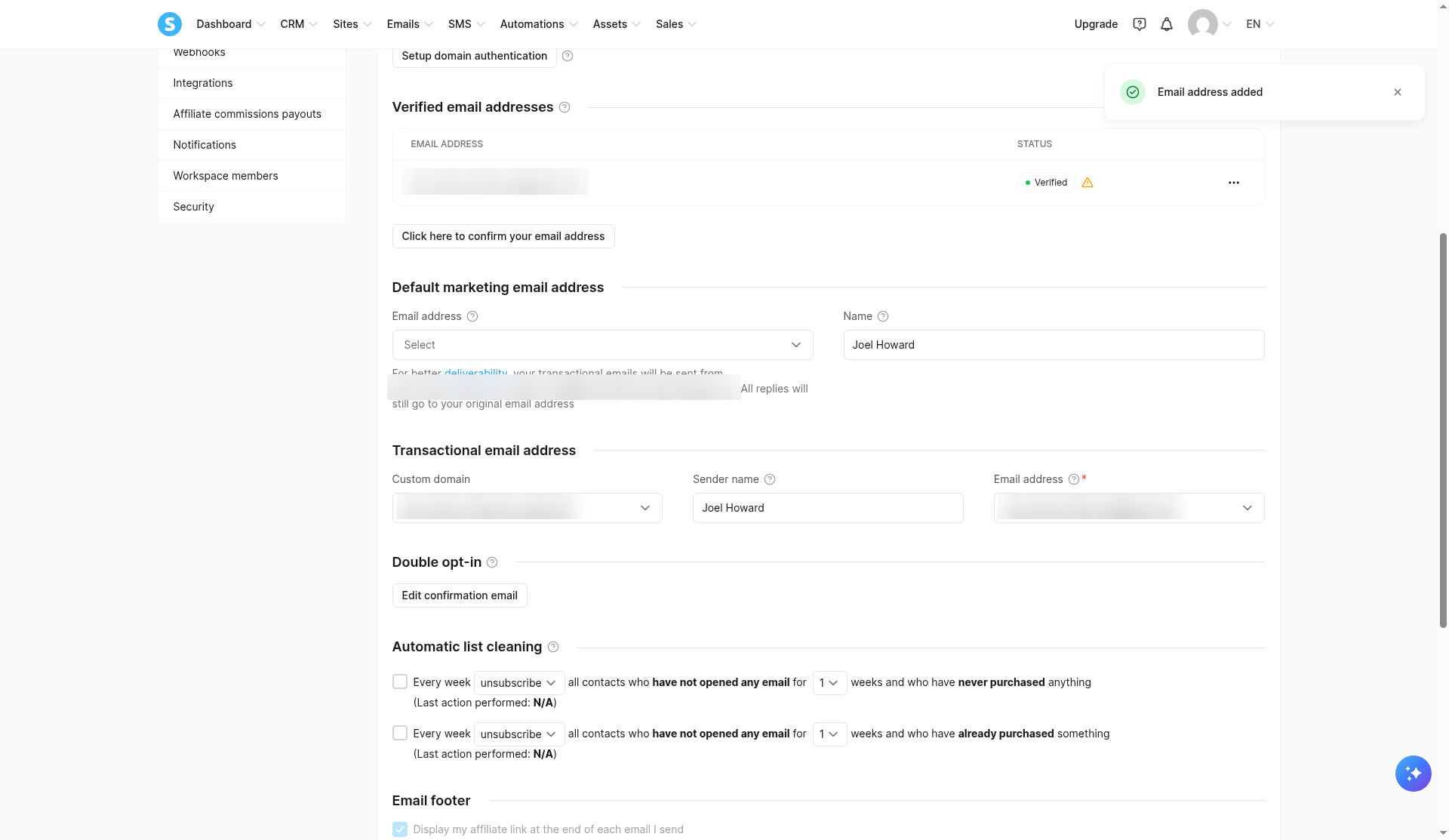
What confused us: our Gmail sender showed as "Verified" in Systeme.io, but next to it was a warning:
"To send emails from this email address, you need to authenticate its domain."
The sender dropdown in our email and automation settings stayed empty, so the welcome email step had nothing to send from. Nothing in the automation rule itself told us why.
What you need before you start: - A domain you own (ours is registered through Squarespace). - An email address on that domain that you can receive mail at (we used hello@ on Google Workspace). - Access to your domain's DNS settings. - About 20 minutes, including the wait.
Part 1: Get Your Records From Systeme.io
- In Systeme.io, open Settings > Emails > Domains.
- Click Setup domain authentication and enter your domain (for example, yourdomain.com).
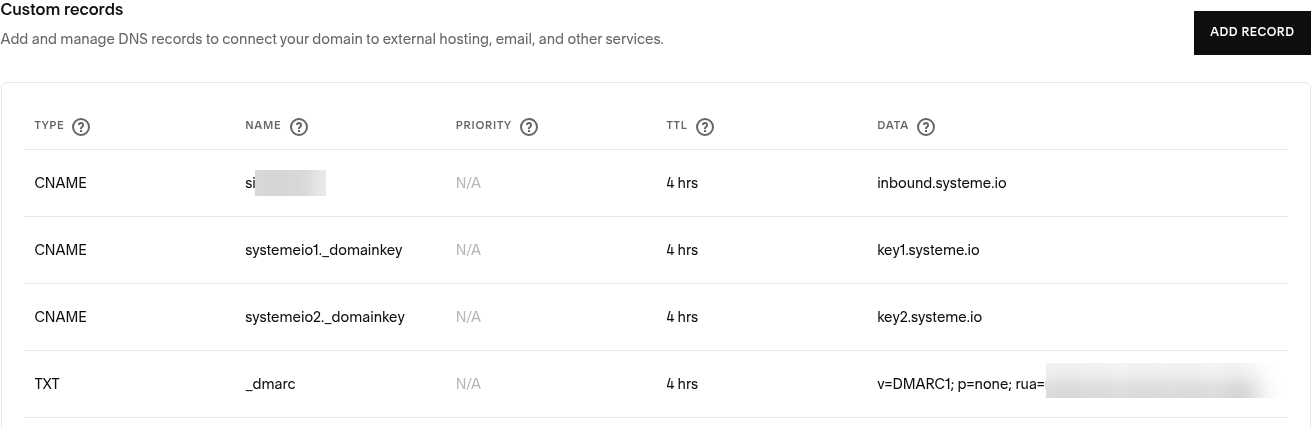
- Systeme.io shows you 4 records to add. Ours were:
| Type | Name (host) | Value / points to |
|---|---|---|
| CNAME | si####### |
inbound.systeme.io |
| CNAME | systemeio1._domainkey |
key1.systeme.io |
| CNAME | systemeio2._domainkey |
key2.systeme.io |
| TXT | _dmarc |
v=DMARC1; p=none; rua=mailto:you@example.com |
Important: the first record's name (si plus a string of numbers) is different for every account. Copy yours exactly from Systeme.io, and copy every value exactly as shown. For the DMARC record, Systeme.io had us pick the reporting email from a dropdown, then built the value for us.
Systeme.io didn't ask us for an SPF record or an MX record, only these four.
- Leave this Systeme.io tab open. You'll copy from it in Part 2.
Part 2: Add the Records in Squarespace
- In Squarespace, go to Domains, pick your domain, then open DNS.
- Scroll to Custom records and click Add record.
- Heads-up: Squarespace may ask you to re-verify your identity before it lets you add records. Ours asked for a Google sign-in check with a text code to the phone on the account. Have your phone nearby.
- Add the first CNAME:
- Type: CNAME
- Name: your
si#######value (just the host part, not the full domain) - Data:
inbound.systeme.io - Save.
- Add
systemeio1._domainkeypointing tokey1.systeme.io(CNAME). Save. - Add
systemeio2._domainkeypointing tokey2.systeme.io(CNAME). Save. - Add the TXT record. In Squarespace, the value field is labelled "Text", not "Value" or "Data."
- Type: TXT
- Name:
_dmarc - Text: paste the full
v=DMARC1; ...value from Systeme.io. - Save.
We left Priority empty and kept the default TTL (Squarespace showed 4 hrs). We didn't touch any existing records. Our Google Workspace email records stayed exactly as they were, and our email kept working.
When you're done, your Custom records table should show the 4 new records.
Part 3: Wait for Systeme.io to Verify
Our records showed up in public DNS lookups right away, but Systeme.io kept showing the domain as Pending. It switched to Verified after about 9 minutes.
There's no "re-check" button. We just reloaded the Systeme.io settings page every few minutes until the status changed.
Part 4: Add and Confirm Your Sender Email
- In Systeme.io Settings, add your domain email (ours was hello@levelupproductivity.com) as a verified email address.
- Systeme.io emails a confirmation link to that address. Open it and click the link. That was the only step for us; no code to type.
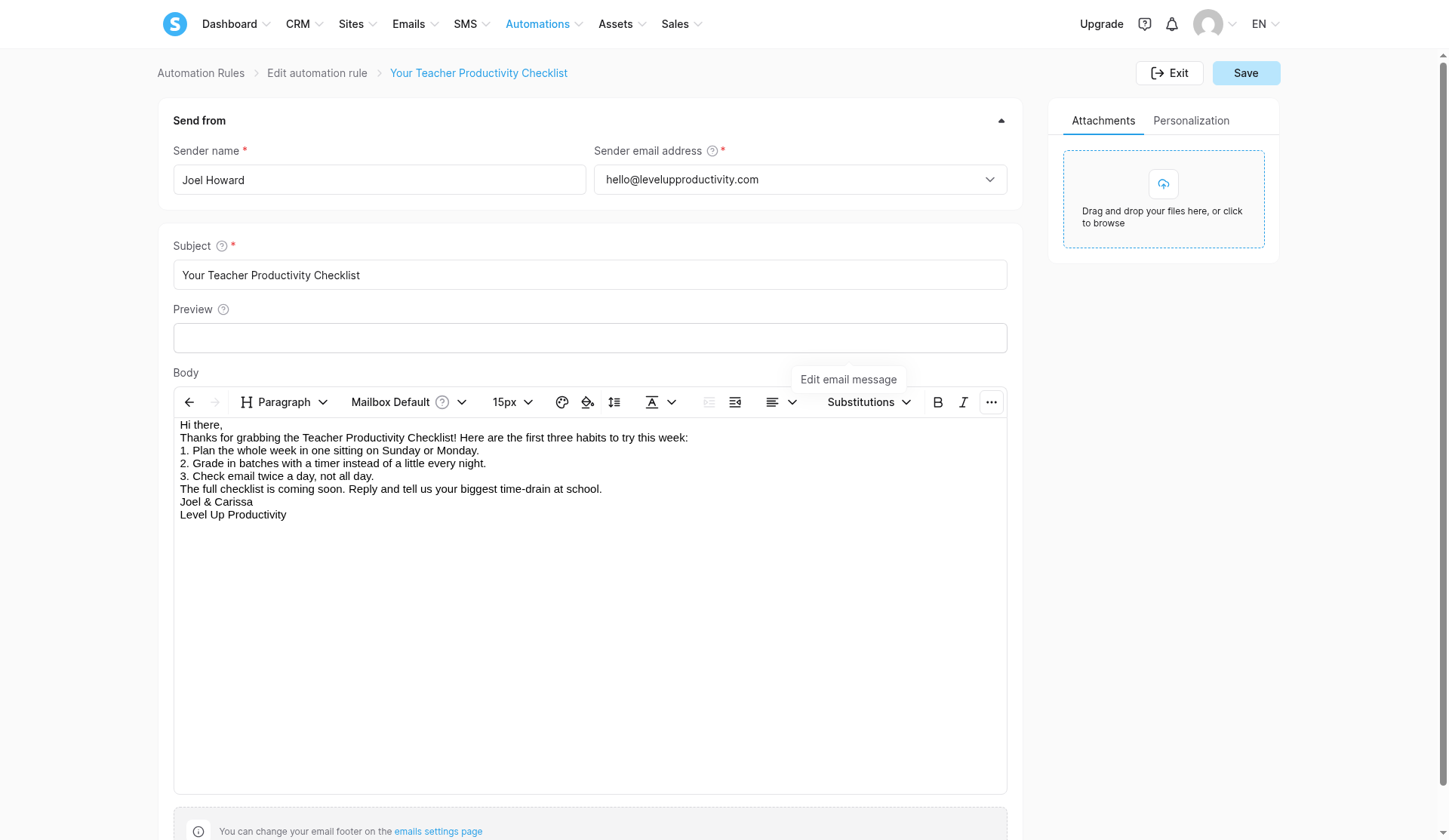
- Under Default marketing email address, choose your new domain address and set the sender name (we used "Joel Howard").
After that, new emails we created in Systeme.io filled in the sender automatically.
Part 5: Test It
Don't skip this. Here's how we tested:
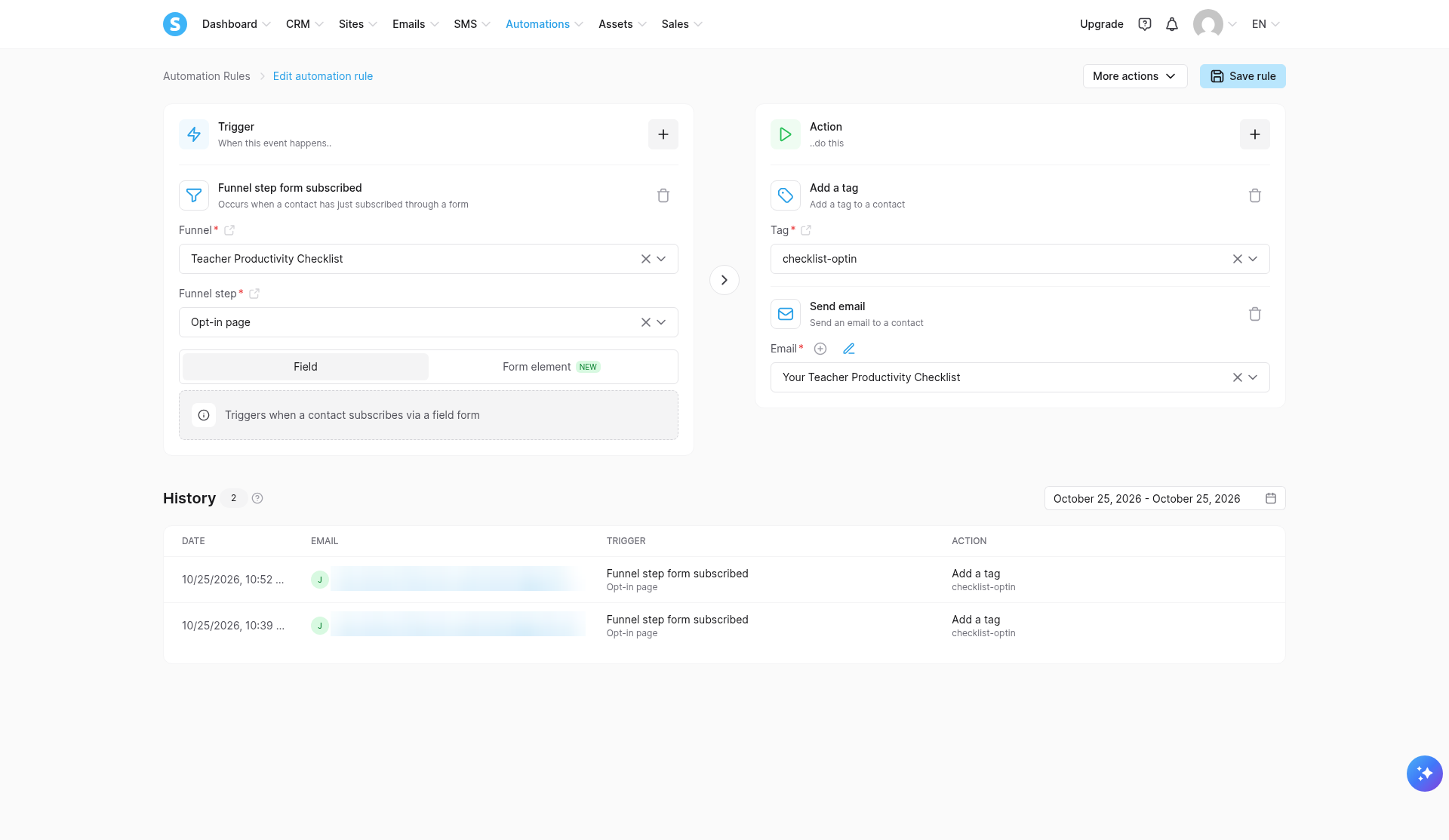
- Make sure your automation rule (for example, "opt-in form subscribed" > add tag > send email) is saved before you test. People who signed up before we added the email step never got the email.
- Open your opt-in page in a private/incognito window and sign up with a fresh email address you can check.
- Check that the contact appears in your Systeme.io contacts and in the rule's History tab.
- Check the inbox.
Our result: our test sign-up went in, and the welcome email was sent about 2 seconds later. It landed in the Gmail inbox under the Promotions tab, not Spam, from Joel Howard at hello@levelupproductivity.com. That was one test contact on a brand-new account, so a large first send may behave differently.
Troubleshooting
The sender dropdown is empty. Your domain isn't authenticated yet, or your sender address isn't on that domain. A Gmail address will never fill it.
Systeme.io still says Pending. If your records look right, give it time and reload the page. Ours took about 9 minutes even though public DNS had already updated.
A record won't verify. Compare it character by character with Systeme.io. Check that you entered only the host part (like systemeio1._domainkey) in Squarespace's Name field, and that the si-number matches your account's.
I can't find where to put the TXT value. In Squarespace it's the field labelled "Text."
Squarespace won't let me add records. Complete its identity re-verification first. Ours was a Google sign-in check with a text code.
The test email never arrived. First check that the sign-up actually registered. One of our test sign-ups didn't, and that was the whole problem. Once, the form also kept an address we'd typed earlier (possibly browser autofill), so test in a private window. The rule's History tab shows actions per contact, but not delivery, so check your inbox, Promotions, and Spam.
An earlier subscriber didn't get the email. Emails aren't sent retroactively to people who opted in before you added the email step.
FAQ
Do I need my own domain to send email from Systeme.io? In our testing, yes. A Gmail sender showed "Verified," but Systeme.io wouldn't send from it until the domain was authenticated.
Does this work on the free plan? Yes. We did all of this on Systeme.io's Free plan.
Do I need an SPF record? Systeme.io only asked us for 3 CNAMEs and 1 DMARC TXT record. No SPF.
Will this break my existing email, like Google Workspace? It didn't for us. These records use their own names and don't replace your MX records. Don't edit or delete records you already have.
How long does it take? Adding the records took us a few minutes. Systeme.io showed the domain as verified about 9 minutes later.
Is my si-number the same as yours? No. Every account gets a different one. Always copy yours from Systeme.io.
My domain isn't on Squarespace. Can I still follow this? The Systeme.io steps are the same. Your registrar's DNS screen will look different, so add the same 4 records wherever it lets you add custom DNS records.
Ready to Try Systeme.io?
We tested all of this on Systeme.io's free plan, which needed no credit card. If you want to build an opt-in page and a welcome email of your own, it's a good place to start.
Start your free Systeme.io account →
(Opens in a new tab.)
Want the full picture first? Read our Systeme.io review.
Disclosure: Some of the links on this page are affiliate links. This means if you click and make a purchase, we may earn a commission at no extra cost to you. We only recommend tools we have personally tested or thoroughly researched. Our opinions are our own.
